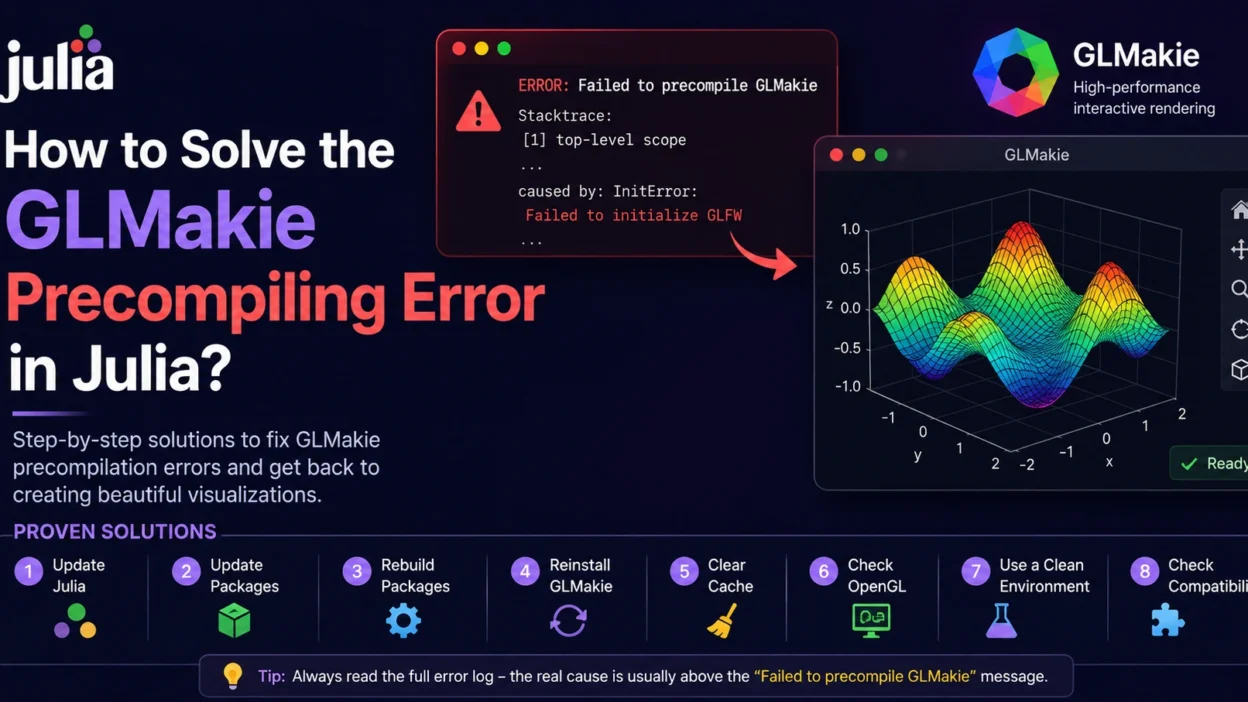
If you’re working with data visualization in Julia, you’ve likely come across GLMakie, the OpenGL-based backend of the Makie plotting ecosystem. While GLMakie offers powerful interactive graphics, users sometimes encounter frustrating precompilation errors when installing or loading the package.
In this guide, we’ll explain the most common causes of GLMakie precompilation errors and walk through several proven solutions.
What Does the Error Look Like?
A typical error might appear similar to:
ERROR: Failed to precompile GLMakie
or:
ERROR: LoadError: InitError
or:
ERROR: Failed to precompile GLMakie to ...
The exact message may vary depending on your Julia version, operating system, and package configuration.
Why Does GLMakie Fail to Precompile?
GLMakie depends on several components:
- OpenGL libraries
- Graphics drivers
- GLFW
- Makie ecosystem packages
- Julia package dependencies
A problem with any of these components can prevent successful precompilation.
Solution 1: Update Julia
One of the most common causes is using an outdated Julia version.
Check your version:
versioninfo()
If you’re running an older release, upgrade to the latest stable Julia version and try again.
Many GLMakie issues disappear after upgrading.
Solution 2: Update All Packages
Package incompatibilities frequently cause precompilation failures.
Open Julia’s package manager:
]
Then run:
update
Or:
pkg> up
After updating, restart Julia and try loading GLMakie again.
Solution 3: Rebuild Packages
Corrupted package artifacts can sometimes break precompilation.
Run:
using Pkg

Pkg.build()
For GLMakie specifically:
Pkg.build("GLMakie")
This forces Julia to rebuild package dependencies.
Solution 4: Remove and Reinstall GLMakie
If package files become corrupted, reinstalling often fixes the problem.
using Pkg

Pkg.rm("GLMakie")
Pkg.gc()
Pkg.add("GLMakie")
After installation:
using GLMakie
Check whether the package loads successfully.
Solution 5: Delete Compiled Cache
Sometimes Julia’s compiled cache becomes invalid.
You can clear it manually.
Typical locations include:
Windows
C:\Users\<username>\.julia\compiled
Linux
~/.julia/compiled
macOS
~/.julia/compiled
Delete the cache folder and restart Julia.
The package will be recompiled automatically.
Solution 6: Verify OpenGL Support
GLMakie requires working OpenGL support.
Test your graphics capabilities:
using GLMakie
If errors mention:
- OpenGL
- GLFW
- Graphics context
- GPU initialization
the issue may be related to graphics drivers rather than Julia itself.
Updating GPU drivers often resolves these problems.
Solution 7: Create a Clean Environment
Package conflicts can occur when many packages are installed in the same environment.
Create a fresh environment:
using Pkg

Pkg.activate("clean_env")
Pkg.add("GLMakie")
Then test:
using GLMakie
If it works, another package in your original environment is likely causing the conflict.
Solution 8: Check Package Compatibility
Some versions of:
- Makie
- GLMakie
- Observables
- GeometryBasics
may not work together.
Check installed versions:
using Pkg

Pkg.status()
Look for outdated or incompatible package versions.
Updating the Makie ecosystem usually resolves dependency conflicts.
Solution 9: Force Precompilation
You can manually trigger package compilation.
using Pkg

Pkg.precompile()
Or:
Pkg.precompile(verbose=true)
The verbose output often reveals the package responsible for the failure.
Solution 10: Review the Full Error Trace
Many users only read:
Failed to precompile GLMakie
However, the actual cause is usually located further up in the stack trace.
Look for messages mentioning:
- Missing libraries
- Version conflicts
- OpenGL initialization failures
- Package dependency errors
- Artifact download failures
The first error is often more informative than the final precompilation message.
Common Platform-Specific Issues
Windows
Common causes include:
- Outdated graphics drivers
- Antivirus interference
- Corrupted package downloads
Linux
Common causes include:
- Missing OpenGL libraries
- Missing Mesa packages
- Wayland/X11 configuration issues
macOS
Common causes include:
- Unsupported hardware
- Old macOS versions
- Package compatibility issues
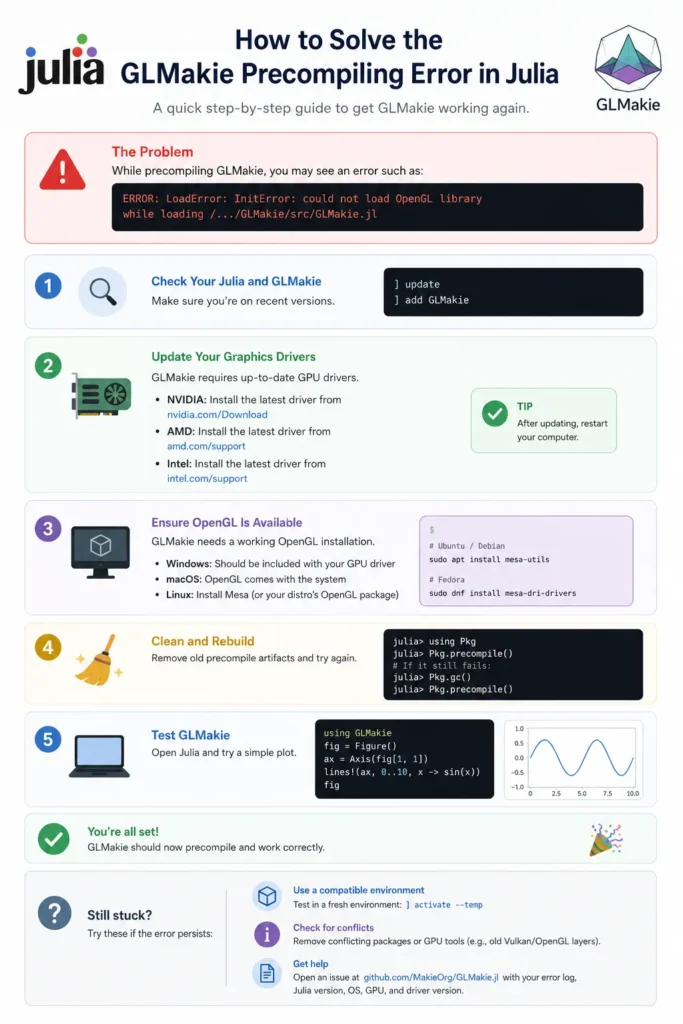
Quick Fix Checklist
Try these steps in order:
- Update Julia
- Update packages (
Pkg.update()) - Run
Pkg.build() - Run
Pkg.precompile() - Reinstall GLMakie
- Clear compiled cache
- Update graphics drivers
- Test in a clean Julia environment
These steps resolve the vast majority of GLMakie precompilation errors.
Infographic
Conclusion
GLMakie precompilation errors usually stem from outdated packages, corrupted caches, dependency conflicts, or graphics-related issues. By updating Julia, rebuilding packages, clearing caches, and verifying OpenGL support, you can typically restore a working GLMakie installation within a few minutes.
When troubleshooting, always inspect the complete error trace, as the root cause is often hidden above the final “Failed to precompile GLMakie” message.