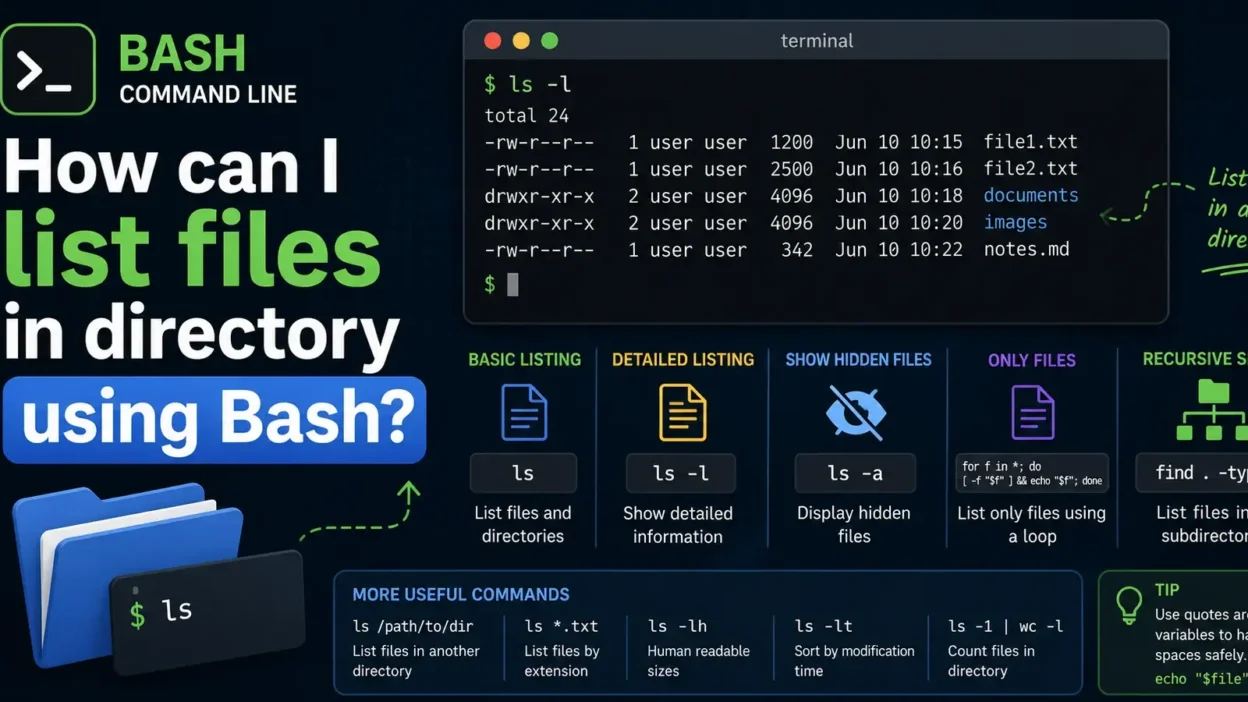
If you’re working with Linux, macOS, or any Unix-like operating system, one of the most common tasks is listing files in a directory. Bash provides several ways to do this, ranging from simple commands to powerful scripting techniques.
In this guide, you’ll learn multiple methods to list files in a directory using Bash.
Using the ls Command
The easiest way to list files is with the ls command.
ls
This displays the files and directories in the current directory.
Example output:
file1.txt
file2.txt
images
documents
List Files in a Specific Directory
You can specify a directory path:
ls /home/user/Documents
Output:
report.pdf
notes.txt
backup.zip
List Files with Detailed Information
Use the -l option:
ls -l
Example output:
-rw-r--r-- 1 user user 1200 Jun 10 file1.txt
-rw-r--r-- 1 user user 2500 Jun 10 file2.txt
This shows:
- Permissions
- Owner
- File size
- Modification date
- Filename
Show Hidden Files
Files beginning with a dot (.) are hidden by default.
To display them:
ls -a
Example output:
.bashrc
.profile
file1.txt
file2.txt
List Only Files Using a Loop
You can use a Bash loop to process files individually.
for file in *; do
    if [ -f "$file" ]; then
        echo "$file"
    fi
done
Output:
file1.txt
file2.txt
report.pdf
This excludes directories.
List Files in Another Directory
for file in /home/user/Documents/*; do
    echo "$file"
done
Output:
/home/user/Documents/file1.txt
/home/user/Documents/file2.txt
List Files Recursively
Use the find command:
find . -type f
Example output:
./file1.txt
./images/photo.jpg
./documents/report.pdf
This searches the current directory and all subdirectories.
Count Files in a Directory
To count files:
ls -1 | wc -l
Example output:
15
This indicates there are 15 items in the directory.
List Files by Extension
Show only text files:
ls *.txt
Output:
notes.txt
readme.txt
Show only images:
ls *.jpg
Output:
photo1.jpg
photo2.jpg
Store File Names in a Variable
You can save the file list for later use.
files=$(ls)
Then display it:
echo "$files"
Using Arrays
A more reliable method:
files=(*)
Loop through files:
for file in "${files[@]}"; do
    echo "$file"
done
This is useful in Bash scripts.
Common Mistakes
Forgetting Quotes
Incorrect:
echo $file
Correct:
echo "$file"
Quotes prevent issues with filenames containing spaces.
Using ls in Scripts Unnecessarily
Instead of:
for file in $(ls)
Use:
for file in *
This is safer and more efficient.
Practical Example
Rename all text files:
for file in *.txt; do
    mv "$file" "backup_$file"
done
Before:
notes.txt
report.txt
After:
backup_notes.txt
backup_report.txt
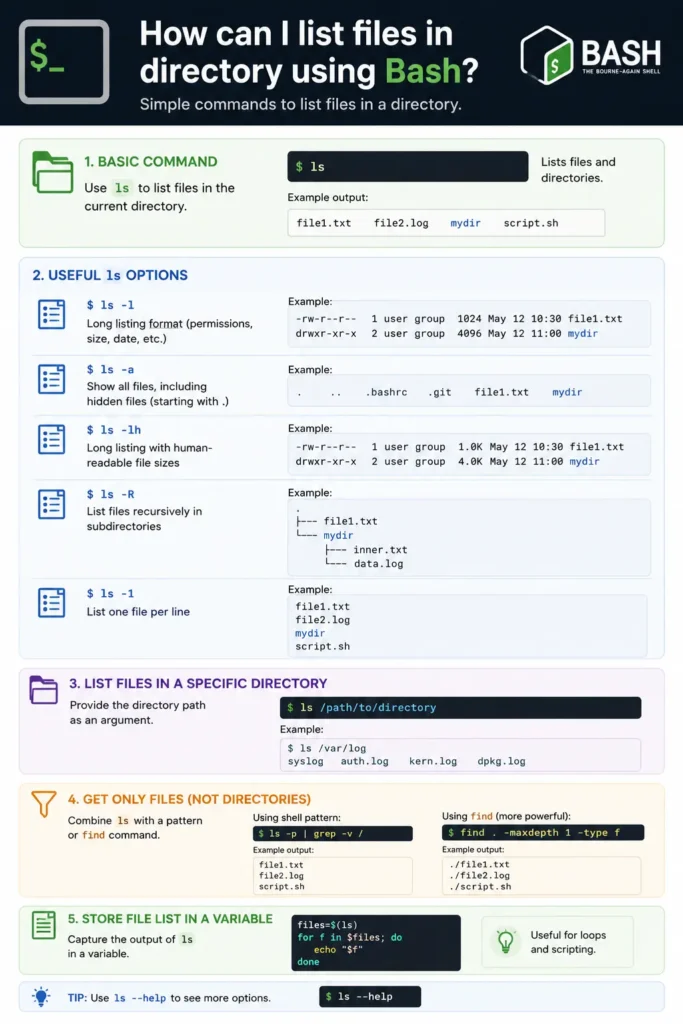
Infographic
Conclusion
Bash offers several ways to list files in a directory:
lsfor quick viewingls -lfor detailed informationls -afor hidden filesforloops for scriptingfindfor recursive searches- Arrays for advanced Bash automation
For simple tasks, ls is usually enough. For scripting and automation, loops and the find command provide much greater flexibility.
Happy Coding!