
When writing shell scripts, one of the most common tasks is obtaining a list of files from a directory. Whether you’re automating backups, processing logs, or organizing files, shell scripting provides several simple and powerful methods to accomplish this.
In this guide, we’ll explore different ways to get a list of files in a directory using a shell script.
Why List Files in a Shell Script?
Getting a list of files is useful for:
- Backup automation
- Batch file processing
- Log analysis
- File renaming
- Data migration
- System administration tasks
Method 1: Using a Simple Loop
The most common approach is using a for loop.
for file in *; do
    echo "$file"
done
Output
file1.txt
file2.txt
image.jpg
documents
This lists all files and directories in the current directory.
Method 2: List Only Files
To exclude directories:
for file in *; do
    if [ -f "$file" ]; then
        echo "$file"
    fi
done
Output
file1.txt
file2.txt
report.pdf
The -f option checks whether the item is a regular file.
Method 3: List Files from Another Directory
Specify a path directly:
for file in /home/user/Documents/*; do
    echo "$file"
done
Output
/home/user/Documents/report.pdf
/home/user/Documents/data.csv
Method 4: Store Files in an Array
Arrays are useful when you need to process files multiple times.
files=(*)
Loop through them:
for file in "${files[@]}"; do
    echo "$file"
done
This approach is cleaner for larger scripts.
Method 5: Using the ls Command
A simple option:
ls
Or save the output:
files=$(ls)
Display the results:
echo "$files"
While this works, it’s generally not recommended for advanced scripting because filenames containing spaces can cause issues.
Method 6: Using find
To search recursively through subdirectories:
find . -type f
Output
./file1.txt
./logs/error.log
./images/photo.jpg
This displays all files in the current directory and its subdirectories.
Method 7: Save Results to a Text File
You can export the file list:
find . -type f > filelist.txt
Contents of filelist.txt:
./file1.txt
./file2.txt
./images/photo.jpg
This is useful for reporting and auditing.
Method 8: List Files by Extension
Text files:
for file in *.txt; do
    echo "$file"
done
Image files:
for file in *.jpg; do
    echo "$file"
done
PDF files:
for file in *.pdf; do
    echo "$file"
done
Count Files in a Directory
Count all files:
find . -type f | wc -l
Example output:
42
This indicates there are 42 files.
Practical Example: Process Every File
Suppose you want to print file sizes:
for file in *; do
    if [ -f "$file" ]; then
        ls -lh "$file"
    fi
done
Example output:
-rw-r--r-- 1 user user 12K file1.txt
-rw-r--r-- 1 user user 3.2M video.mp4
Common Mistakes
Forgetting Quotes
Incorrect:
echo $file
Correct:
echo "$file"
Quotes prevent errors when filenames contain spaces.
Using ls Inside Loops
Avoid:
for file in $(ls)
Prefer:
for file in *
The second approach is safer and handles special characters correctly.
Best Practice
For most shell scripts:
for file in *; do
    [ -f "$file" ] && echo "$file"
done
This is simple, efficient, and works in most situations.
For recursive searches, use:
find . -type f
Infographic
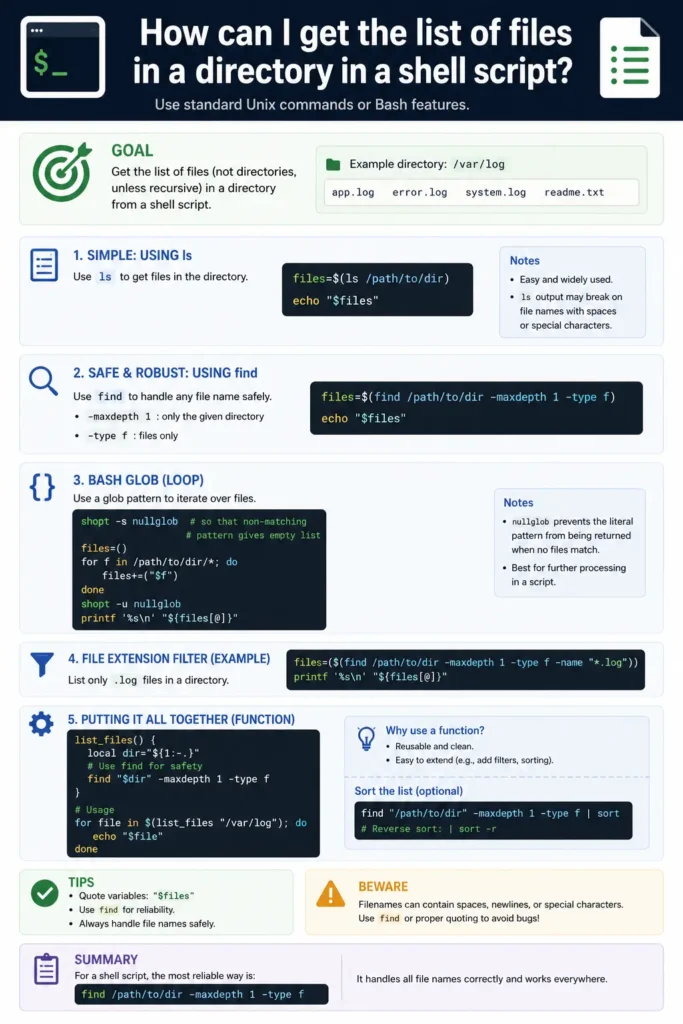
Conclusion
There are several ways to get a list of files in a directory using a shell script:
forloops for simple iteration- Arrays for reusable file lists
findfor recursive searcheslsfor quick directory viewing- Pattern matching for specific file types
For scripting purposes, loops and the find command are generally the most reliable solutions.
Happy Coding!